 EN
EN DE
DE ES
ES FR
FR NL
NL PT
PT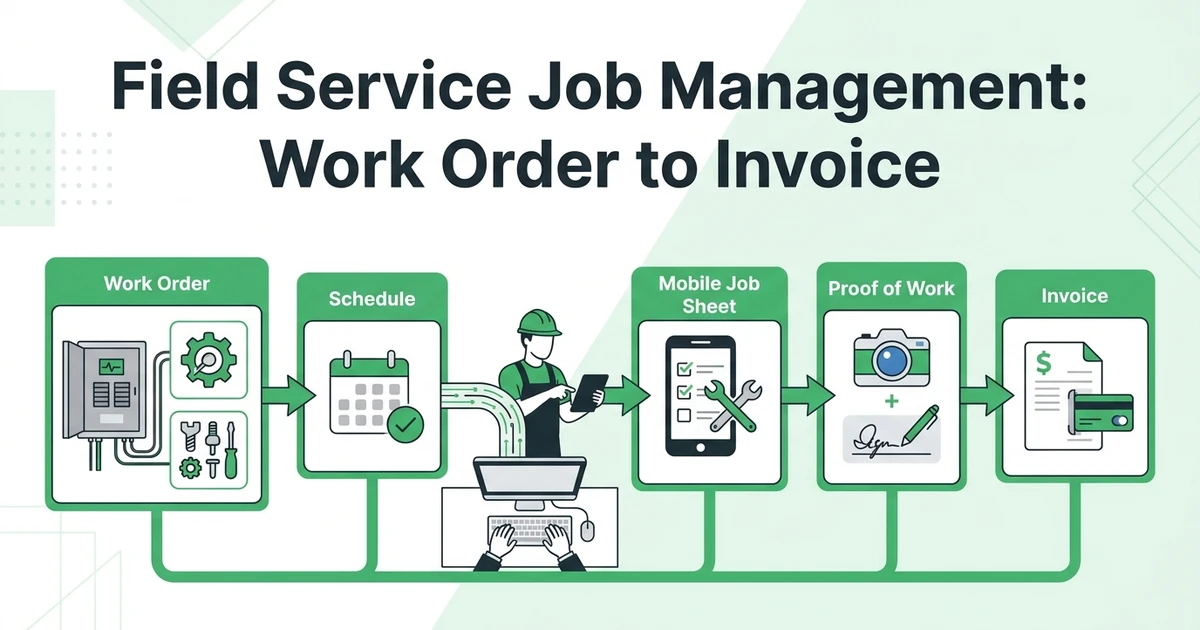





Quick Answer: Field service job management software keeps a work order connected from customer request to scheduling, technician execution, proof of work, completion, and invoicing. It gives the office and mobile team one job record so important details do not have to be rebuilt at every handoff.
A work order starts with a request, but it does not end when a technician reaches the site. The customer may change the scope. A part may be unavailable. The technician may need a return visit. The final invoice may depend on labor, materials, photos, approval, and a clear completion note.
That is why field service job management software is different from a calendar alone. The calendar answers where a job is scheduled. A job-management workflow also keeps the information that lets the team prepare, execute, document, close, and bill the work.
The U.S. Census Bureau reported that 58.9% of surveyed businesses considered specialized software very important to their processes or methods in its 2023 Annual Business Survey technology adoption summary. The figure is not a promise that software will fix every field operation. It is a reason to ask whether the tool will become part of the process or simply add another place to update.
Why a Work Order Becomes Hard to Manage After It Leaves the Office
The first version of a work order is usually clean. A customer calls, the office notes the address and problem, and the dispatcher places the appointment on the schedule. The gaps appear when real work begins.
A technician discovers that the issue is larger than the original request. The customer approves extra work in a message. A part is used but not recorded. The office changes the time window. A photo sits on a phone. The final labor is written on paper. Each detail may be accurate on its own, but the job becomes difficult to bill when the details do not return to the same record.
For a roofing company, the issue might be a change from inspection to repair. For an electrical contractor, it might be a panel upgrade that needs an added line item. For a cleaning team, it might be a recurring visit with a special request. The work order needs to hold the history, not just the original appointment.
What Should a Field Service Job Record Contain?
The right job record depends on the trade, but a useful record answers five questions:
- Who is the customer and where is the work? Include contact details, service address, access instructions, and site history.
- What was requested and what was approved? Keep the original request, scope, quote, changes, and customer approval together.
- Who is doing the work and when? Show the assigned technician or crew, appointment window, priority, and schedule changes.
- What happened in the field? Capture checklists, notes, photos, signatures, parts, labor, and follow-up needs.
- What should happen next? Record completion, invoice status, payment, return visit, warranty work, or customer follow-up.
This is the difference between a job record and a loose collection of messages. The record is useful after the technician leaves because someone else can understand what changed and why.
Fieldified’s job details, photos, forms, and completion records keep instructions, updates, notes, checklists, photos, time, and completion information with the job. That gives office and field teams one clearer record to work from throughout the visit.
How Job Management Software Connects Intake, Scheduling, and Dispatch
Job management begins before dispatch. The customer request should create or update the right customer record, preserve the service details, and give the scheduler enough context to assign the job.
A connected workflow looks like this:
| Stage | Office needs | Field team receives | Record created |
|---|---|---|---|
| Intake | Customer, site, request, urgency | Service context | Request or lead |
| Planning | Scope, skill, parts, duration | Instructions and access notes | Work order |
| Dispatch | Appointment, technician, route, change history | Schedule and alerts | Assigned visit |
| Execution | Status and exceptions | Checklist, photos, notes, labor | Job update |
| Closeout | Approval, final scope, billable items | Completion confirmation | Closed job and invoice task |
The office does not need to ask the technician for information that already belongs in the job. The technician does not need to search a message history for the customer address or special instructions.
Fieldified’s field service job management software connects estimates, parts planning, mobile job sheets, proof of work, and invoicing across the job lifecycle.
What Technicians Need to Update From the Field
Technicians do not need a long form for every visit. They need the right information at the right point in the job.
Before arrival, that may include the customer history, site notes, access instructions, requested work, and parts. During the visit, it may include a checklist, time, photos, measurements, safety notes, and an additional-work request. At completion, it may include the work performed, materials used, signature, and a recommendation.
Keep the mobile workflow short enough to use between tasks. A technician servicing a commercial HVAC unit may need to document readings and a failed component. A plumber handling a leak may need before-and-after photos and a customer approval. A cleaning supervisor may need a checklist and a note about an access issue.
The office also needs to see the status change. “Assigned,” “on the way,” “in progress,” “waiting for approval,” “completed,” and “needs follow-up” should mean something consistent to everyone.
Fieldified’s scheduling and dispatch tools connect appointment details with the job record so the office can assign work and follow field updates in one workflow.
How Completed Work Becomes an Accurate Invoice
The invoice should reflect what the customer approved and what the technician completed. That sounds obvious, but it becomes difficult when the final scope is spread across an estimate, a phone call, a text, a paper note, and a parts receipt.
Use a closeout checklist:
- Is the final work scope clear?
- Are parts and materials recorded against the job?
- Are labor hours or billable activities present?
- Are additional charges approved where required?
- Are photos, signatures, and completion notes attached?
- Is a return visit needed?
- Is the invoice ready, or does a manager need to review it?
Fieldified connects approved estimates to scheduled jobs, keeps technician time, parts, labor, and proof of work with the job, and can generate an invoice from the completed work. That gives electrical, HVAC, and plumbing teams a clearer path from approved scope to accurate billing while giving managers room to review unusual charges before sending them.
The how to manage clients, jobs, and invoices guide gives a related process view. Use it when the same team is trying to connect customer history with operational records.
A Work Order-to-Invoice Example for an Electrical Contractor
An electrical contractor receives a request to inspect a panel that is tripping. The office creates the customer and site record, captures the panel details, and schedules an electrician with the right experience.
At the site, the electrician finds heat damage and recommends a replacement. The original inspection becomes a larger job only after the customer approves the added scope. The technician records the panel photos, materials required, labor, and a safety note. If the replacement needs a second visit, the record holds that next step instead of marking the job complete.
After the work is finished, the office can review the final scope, parts, labor, customer approval, and proof of work before sending the invoice. If the customer asks about the charge later, the team has a history of what was requested, approved, and completed.
The same logic works for an HVAC repair or a plumbing service call. The fields change, but the handoff questions stay similar.
What to Check Before Choosing Field Service Job Management Software
Ask to see one complete job, including an exception. A vendor demo that shows only a clean appointment does not test the part that creates admin.
Use this evaluation checklist:
| Capability to test | Why it matters | Scenario to request |
|---|---|---|
| Shared customer and job record | Prevents context loss | Repeat customer with site history |
| Status and schedule history | Shows what changed | Technician delayed by an hour |
| Mobile job sheet | Gives the field team usable context | Technician adds a photo and note |
| Parts and labor capture | Supports accurate closeout | Extra material added on site |
| Proof of work | Helps explain completed work | Customer signature and before-after photos |
| Invoice handoff | Reduces rebuilding after completion | Job closes with a final scope change |
| Permissions and review | Keeps exceptions visible | Discount or unusual labor needs approval |
Also ask what happens when the phone has limited connectivity, a technician forgets a field, or a customer does not approve additional work. The answer should be clear enough for the dispatcher and technician to use on a busy day.
The BLS projects about 569,000 openings each year, on average, in installation, maintenance, and repair occupations from 2025 to 2035 in its current Occupational Outlook Handbook summary. A job record will not solve staffing by itself, but preserving clear instructions and history becomes more valuable when work is moving between busy technicians and office staff.
Ask how the vendor handles the moments that create disputes. Can the office see the original scope beside the approved change? Can a technician add a photo without losing the job note? Can a manager tell whether an invoice is waiting for a signature, a material cost, or an internal review? These questions reveal whether the record supports the work after the appointment ends.
Also test permissions and history. A small team may want technicians to update notes and status while limiting price changes or invoice release to the office. The system should make corrections visible instead of silently replacing the original entry, especially when a customer or manager needs to understand what changed.
To see the workflow with your own job types, request a Fieldified demo and bring a real work order from intake through invoicing.
When a Job Management Tool Is Better Than Separate Apps
Separate tools can work when one person handles a small number of simple jobs. The pressure appears when the same work is copied across a calendar, messaging app, spreadsheet, accounting system, and photo folder.
A connected job-management tool is worth evaluating when:
- The office asks technicians for job details that were already collected.
- Schedule changes do not reach every person involved.
- Parts and labor are missing from invoices.
- Customers call for updates the office cannot see.
- Return visits are hard to connect to the original job.
- The owner reviews every closeout because the process is not visible.
There is another signal: the team cannot answer a customer question without asking the person who last touched the job. A customer may want to know whether the replacement part was ordered, whether the technician documented the repair, or why the final invoice changed. If the answer depends on searching several message threads, the operational record is not doing enough work.
Before choosing a platform, write down the minimum record for three jobs: a simple maintenance visit, an urgent repair, and a job with added scope. Then ask a vendor to show how each record is created, updated, reviewed, and closed. This exposes whether the product fits ordinary work and exceptions, instead of only looking good in a clean demo.
Do not forget the ownership question. Someone should decide who can change a schedule, approve a scope adjustment, correct a time entry, and release an invoice. Software can show the status, but the business still needs a clear responsibility for each decision.
This does not mean one platform must replace every financial or communication system. It means the job should have a reliable operational home and clear handoffs to the tools that remain.
Frequently Asked Questions
What is field service job management software?
It keeps the customer request, work order, schedule, technician updates, job documentation, completion status, and invoice connected. The office and field team can use one record to move work from intake to payment.
Is job management software the same as work order software?
The terms overlap, but job management usually covers more of the lifecycle around a work order. It may connect scheduling, customer details, field notes, parts, labor, proof of work, and billing.
What should a field service work order include?
A work order should include the customer and site details, service request, scope, appointment, assigned team, instructions, parts, labor, notes, photos, approvals, completion status, and billing information. The exact fields should match the trade and job type.
Can technicians update job records from a phone?
Many field service systems provide mobile job sheets for instructions, checklists, notes, photos, labor, and signatures. Confirm the exact mobile and offline behavior before choosing a product.
How does job management software connect to invoicing?
Once the job contains the final scope, labor, materials, and completion information, those details can move into an invoice workflow. Unusual charges, discounts, taxes, and customer approvals should still receive the review they require.
When does a small contractor need job management software?
Evaluate it when multiple people touch the same job and details are lost between calls, calendars, messages, field notes, and billing. Repeated handoff problems are a stronger signal than a particular team size.
Conclusion: Keep the Job Moving With Its Details
Field service job management is about preserving context. The work order should carry the request, schedule, instructions, field updates, proof, materials, labor, completion, and billing path without asking the team to rebuild the story at every stage.
For an electrical, HVAC, plumbing, roofing, or cleaning company, that shared record can make exceptions easier to manage and job closeout easier to review. The best choice is the system that matches the way the team actually works.
For a growing team, adoption matters as much as the feature list. The office should be able to find a job quickly, and the technician should understand what must be completed before closing it. If the workflow is too complicated, the business will return to side conversations and manual notes, which brings the original handoff problem back.
Request a demo to walk through your own work order, technician update, and invoice workflow in Fieldified.